

Your high-end gaming rig is a masterpiece of modern engineering, but running it without a dedicated gaming pc temperature monitor is like pushing a supercar to its limit without a dashboard. You’ve likely felt the heat radiating through your case during a long session or noticed your frame rates dip just as the action peaks. In Bahrain’s demanding climate, these thermal spikes aren’t just annoying; they’re a threat to the soul of your hardware. We understand that fear because we’re builders who value precision over generic solutions.
You can master your system thermals using the latest 2026 monitoring tools and expert-verified benchmarks to ensure peak performance in any environment. This guide breaks down the latest versions of HWiNFO 8.46 and MSI Afterburner, provides the exact safe operating ranges for elite silicon like the Intel Core Ultra 9 285K, and gives you the professional knowledge needed to keep your system running at peak efficiency. It’s time to stop guessing and start optimizing.
Key Takeaways
- Learn how a gaming pc temperature monitor acts as a proactive defense against thermal throttling to keep your FPS stable during intense sessions.
- Master the latest 2026 benchmarks for high-end silicon to know exactly when your hardware enters a critical danger zone.
- Identify the best technical tools like HWiNFO 8.46 and MSI Afterburner to gain elite sensor accuracy and live performance overlays.
- Discover effective undervolting techniques and software optimizations that lower heat without sacrificing your system’s raw power.
- Recognize the signs that your rig requires professional deep cleaning to protect its internal character from Bahrain’s environmental challenges.
Why Every High-Performance Rig Needs a Gaming PC Temperature Monitor
Every high-performance machine is a living, breathing ecosystem of silicon and electricity. Without a reliable gaming pc temperature monitor, you’re flying blind through a storm of thermal energy. Thermal monitoring is your proactive defense against the silent killer of hardware: permanent degradation. When components run too hot for too long, the delicate pathways inside your CPU and GPU begin to break down. It’s about more than just keeping things cool; it’s about maintaining the soul of your machine through precise data interpretation. This isn’t just theory; it’s a measurable decline in the lifespan of your investment.
In Bahrain, the stakes are significantly higher. Ambient temperatures often exceed 40°C during summer months; this places an immense load on your cooling solution. Dust accumulation in the desert environment acts as an insulator, trapping heat against your components and making baseline cooling much harder to achieve. While a standard build might survive in a climate-controlled lab, real-world performance in the Gulf requires constant vigilance. Proper monitoring is essential for keeping components within permissible operating temperature limits, especially when the air being pulled into your case is already warm.
Thermal throttling is the most immediate threat to your gameplay. It’s a self-preservation mechanism where your hardware intentionally slows down to shed heat. One minute you’re hitting 144 FPS; the next, you’re stuttering at 40 FPS because your GPU hit its thermal limit. Your GPU and CPU work in a delicate dance; if one throttles, the other sits idle, creating a bottleneck that ruins the experience. This is why maintaining an ultimate gaming pc build requires more than just high-end parts. It requires the wisdom to watch the numbers and react before the hardware forces a slowdown.
The Risks of Overheating in 2026
Modern 2026 hardware pushes boundaries, but heat remains the ultimate bottleneck. Sustained exposure to temperatures above 95°C leads to permanent silicon degradation, reducing the maximum clock speeds your chip can handle over time. Beyond performance, you risk unexpected system shutdowns. For professionals using 3D rendering workstations, a heat-induced crash means lost time and corrupted data. Even your power supply efficiency drops as heat increases electrical resistance, forcing your rig to draw more power for the same output and putting unnecessary stress on your PSU.
Software vs. Hardware Monitoring
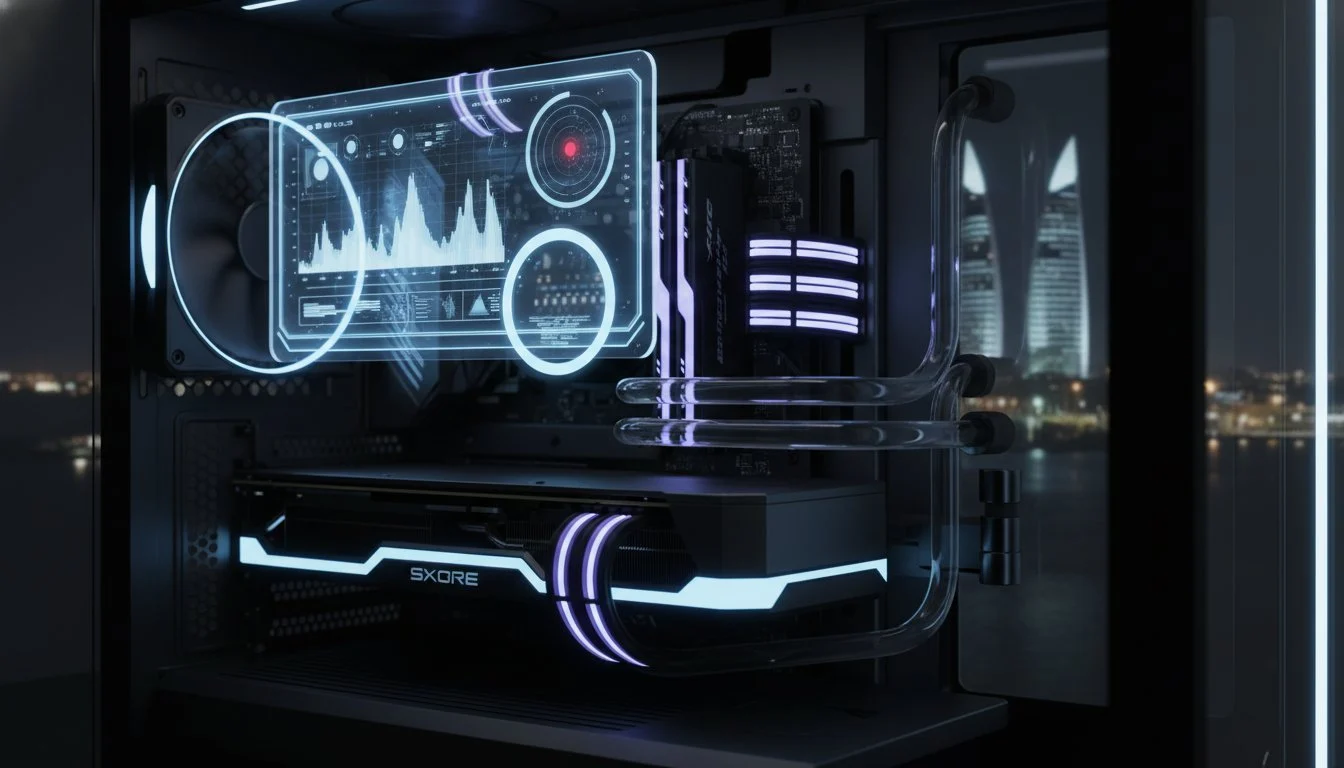
Real-time feedback is king. On-screen displays (OSD) allow you to track metrics without alt-tabbing, which is crucial during intense gaming sessions. Many modern custom cases now feature integrated physical sensor panels; these internal LCDs provide a dedicated dashboard for your temperatures that you can see through your tempered glass. While BIOS-level readings are the most accurate, they don’t help while Windows is running. A robust gaming pc temperature monitor bridges that gap, giving you the precision of the BIOS with the convenience of a desktop app. For builders who want this real-time data displayed directly on their cooling hardware, an aio cooler with lcd screen transforms your pump head into a live thermal command center.
The Best Gaming PC Temperature Monitoring Tools for 2026
Software is the lens through which we view the health of our hardware. Without the right diagnostic tools, your high-octane rig is just a black box of silent risks. As of May 2026, the software landscape has matured to provide granular data that was once reserved for laboratory testing. Selecting a professional grade gaming pc temperature monitor is the first step in ensuring your system survives the Bahraini summer. These tools provide the critical statistics that you should watch to maintain peak performance and avoid the heartbreak of a fried GPU.
HWInfo64: The Professional Choice
HWiNFO version 8.46, released on April 14, 2026, remains the undisputed gold standard for hardware enthusiasts. It provides the most comprehensive sensor data available. When you launch the program, always select “Sensors Only” mode for a focused, real-time view of every thermal probe in your system. Modern GPUs, like the NVIDIA RTX 50-series, require you to track “Hot Spot” temperatures rather than just the “Average” or “Edge” readings. The hot spot can often be 15°C higher than the average; this is where thermal throttling actually begins. If you are pushing a Grey PC custom build to its limits, use the built-in logging feature to analyze how your thermals behave during a four-hour gaming marathon.
MSI Afterburner: Monitoring While You Play
For those who need data without leaving the action, MSI Afterburner is essential. The latest 4.6.7 Beta 2, which arrived in February 2026, continues to offer the most reliable on-screen display (OSD) through the RivaTuner Statistics Server. You can configure a sleek overlay that shows your CPU and GPU temperatures alongside your frametimes. Seeing a sudden spike in temperature paired with a frametime stutter is the fastest way to diagnose a thermal bottleneck. It’s a vital tool for real-time adjustments. If your GPU hits 90°C, you’ll see it instantly and can adjust your fan curves or ambient cooling before damage occurs.
While HWiNFO and Afterburner handle the heavy lifting, other tools offer specialized benefits. Core Temp remains a brilliant, lightweight option for quick CPU checks without the overhead of larger suites. For users who value aesthetics, ecosystem tools like NZXT CAM and Corsair iCUE provide high-end visuals and direct integration with your internal lighting and fan controllers. These proprietary suites have evolved in 2026 to be more resource-efficient, offering a balance between style and substance. Whether you prefer a deep technical dive or a beautiful dashboard, having a dedicated gaming pc temperature monitor is non-negotiable for the modern builder.

Decoding the Numbers: What is a “Safe” Temperature?
Seeing a high number on your gaming pc temperature monitor can trigger immediate panic, but modern silicon is more resilient than you might think. Hardware in 2026 is designed for extreme power density. An Intel Core i9-14900K or the newer Core Ultra 9 285K can safely reach 100°C under heavy loads without sustaining damage. The key is understanding the context of the data. An idle temperature between 30°C and 45°C is perfect. When you’re deep in a 4K gaming session, seeing 65°C to 85°C is the sweet spot for peak efficiency. It’s only when you consistently cross the 95°C threshold that you need to worry about the long-term health of your rig.
High-performance workstations used for 3D rendering or crypto mining demand even more attention to specific sensors. GPU VRAM junction temperatures are often the first to hit critical limits, sometimes reaching 110°C on high-end cards. While the GPU core might look cool, the memory modules could be cooking. Integrating a gaming pc temperature monitor into your daily workflow allows you to see these hidden deltas. It helps you distinguish between a temporary spike and a sustained thermal emergency that requires an adjustment to your fan curves.
CPU and GPU Temperature Benchmarks
Intel and AMD have different thermal philosophies. Most modern Intel chips have a T-junction limit of 105°C, while AMD Ryzen 9000-series processors typically target a maximum of 95°C. If your chip hits these numbers, it will throttle performance to save itself. On the graphics side, the safe upper limit for NVIDIA Blackwell GPUs sits at a firm 85°C for the core. You must also watch the “Hot Spot” delta. A gap of more than 20°C between the average GPU temp and the hot spot usually indicates poor thermal paste application or a mounting pressure issue that needs professional attention.
Memory and Storage Thermals
In 2026, we’re seeing a massive shift in how secondary components handle heat. DDR5 RAM is a different beast; it generates significant internal heat due to its onboard power management. Keeping your memory under 60°C is vital for system stability. Once you cross that line, you risk bit-flips and memory-related crashes. Similarly, NVMe Gen5 SSDs are incredibly fast but notoriously hot. These drives can easily exceed 80°C during heavy file transfers, leading to severe speed throttling. Your case airflow must do more than just cool the CPU; it needs to move air over these high-speed modules to maintain the integrity of your data.
Troubleshooting High Temperatures: Software and Hardware Fixes
If your gaming pc temperature monitor reveals numbers climbing into the danger zone, immediate action is required to protect your silicon. Troubleshooting begins with identifying whether the heat is a product of software inefficiency or hardware limitations. Start by checking your background processes in Task Manager. Resource-heavy applications or even stealthy malware-driven crypto miners can keep your GPU at high utilization while you’re just browsing the desktop. Eliminating these hidden loads can drop your idle temperatures by 5°C to 10°C instantly.
Undervolting is the seasoned builder’s secret weapon for 2026 hardware. By slightly reducing the voltage sent to your CPU or GPU, you can significantly lower heat output without sacrificing clock speeds or stability. It’s a precision task that allows your components to run more efficiently, often resulting in higher sustained boost clocks because the thermal ceiling is no longer being hit. For those seeking the ultimate thermal environment, the choice of chassis is paramount. A case like the lian li pc-o11 dynamic provides the specialized airflow paths necessary for high-heat components to breathe.
Optimizing Your Airflow Strategy
In Bahrain’s dusty environment, your airflow strategy determines the longevity of your rig. Positive pressure, where you have more intake fans than exhaust fans, is the superior choice. This setup forces air out of every small gap in the case, preventing dust from being sucked in through unfiltered cracks. Regularly cleaning your intake filters is non-negotiable. A well-executed clean pc cable management strategy is equally critical, as bundled or obstructive cables can block vital airflow channels and trap heat around your most sensitive components. If you notice your gaming pc temperature monitor showing erratic spikes, it may indicate a failing AIO pump. A sudden 20-degree jump within seconds of starting a game is a classic sign of a dead pump or a massive air bubble in the loop. Upgrading to a modern aio cooler with lcd screen not only improves thermal performance but also gives you instant visual feedback on pump health and coolant temperatures directly on the unit itself.
Software Optimization for Cooler Gaming
You don’t always need to change your hardware to lower your temps. Capping your FPS to match your monitor’s refresh rate prevents your GPU from working at 100% to render frames you’ll never see. Adjusting your Windows Power Plan to “Balanced” instead of “High Performance” allows the CPU to downclock during light tasks, reducing unnecessary heat soak. Ensure your BIOS and GPU drivers are updated; manufacturers often release firmware patches that refine thermal management and fan curve logic for better efficiency. If these software tweaks don’t solve the heat, it’s time to upgrade your cooling. You can find high-performance CPU coolers designed to handle the most demanding thermal loads.
Fine-tuning your fan curves is the final step in thermal mastery. Tools like “Fan Control” allow you to tie your case fan speeds to the hottest sensor in your system, whether that’s the GPU hotspot or the NVMe drive. A well-configured curve ensures your system stays whisper-quiet during light work but ramps up aggressively before the heat becomes a problem. This proactive approach keeps your hardware within safe limits and ensures your gaming experience remains uninterrupted by thermal throttling.
Professional Thermal Management with Grey PC
Software is your early warning system, but it cannot physically reach inside your chassis to solve deep-seated thermal issues. When your gaming pc temperature monitor continues to report high deltas despite your best software tweaks, it indicates a need for professional intervention. At Grey PC, we treat every machine as a bespoke masterpiece. We understand that high-performance hardware requires more than just air; it requires a surgical approach to maintenance. Our technicians specialize in identifying the microscopic culprits that cause thermal runaway, ensuring your system’s internal character remains intact.
Dust in Bahrain is more than a nuisance; it’s a thermal insulator that can bypass even the best intake filters. Our professional deep-cleaning service goes beyond a simple blast of compressed air. We perform a complete teardown to remove packed debris from radiator fins and GPU heatsinks that software simply can’t see. We also provide expert re-pasting using premium, high-conductivity thermal compounds. Standard factory paste often dries out after a year of intense heat exposure. Replacing it with enthusiast-grade material can drop your load temperatures by an additional 5°C to 8°C, providing the thermal headroom your silicon deserves.
Why Professional Servicing Beats DIY
Modern hardware is incredibly dense and fragile. Attempting a teardown on elite components like nvidia geforce rtx 5090 for sale cards carries significant risk for the untrained hand. We utilize industrial-grade tools for dust extraction and static-safe environments for all internal work. Every service concludes with a rigorous testing and validation phase. We don’t just clean your rig; we benchmark it against its original specs to ensure it hits every performance target post-service. This precision ensures your investment is protected by experts who know the “soul” of the technology.
Get Your Rig Ready for the Heat
Preparing for the summer months requires a proactive strategy. Consult with our team for cooling upgrades, ranging from high-static pressure fans to advanced AIO installations. A professional thermal audit can identify potential failure points in your loop or airflow path before they lead to a system crash. Once your internals are stabilized, you can focus on the external experience. Pair your optimized rig with a precision mechanical keyboard for gaming to ensure your inputs are as fast as your cooled processor. Secure your hardware investment today by booking a comprehensive thermal checkup with builders who value quality over generic solutions.
Custom loop maintenance is another area where professional expertise is vital. Liquid-cooled systems require periodic flushing to prevent biogrowth and coolant breakdown, which can clog micro-channels in your water blocks. We handle the delicate process of draining, cleaning, and refilling your loop with high-performance fluids. This meticulous care ensures your enthusiast-grade machine remains a cooling powerhouse. Don’t let heat dictate your performance limits when professional-grade solutions are just a consultation away.
Master Your Thermals for the Blackwell Era
Your journey to thermal mastery starts with the right data. By utilizing a high-precision gaming pc temperature monitor and understanding the safe operating limits of 2026 hardware, you ensure your machine remains a cooling powerhouse. You’ve learned how to decode sensor deltas and apply critical software fixes to keep your FPS stable. However, even the most optimized software cannot replace physical maintenance in Bahrain’s unique environment. Elite performance requires a proactive defense against the heat.
When the numbers indicate a deeper issue, trust the specialists who build these machines from the ground up. Grey PC provides expert assembly of high-end rigs and specialized hardware cleaning services to remove the desert dust that traps heat. Our national technical support for gaming and pro workstations ensures your system stays at peak efficiency year-round. We understand the internal character of your technology and provide the precision care needed to sustain it.
Take the next step in protecting your investment. Book a Professional PC Thermal Service at Grey PC today and give your hardware the elite care it deserves. Your rig has a soul; keep it cool and let it perform at its absolute peak.
Frequently Asked Questions
What is a normal temperature for a gaming PC while playing?
A safe and optimal range for both your CPU and GPU during intensive gaming is between 65°C and 85°C. Modern 2026 silicon is engineered to thrive within this thermal window. While your system can technically handle higher spikes, maintaining a consistent temperature under 80°C ensures your hardware retains its peak performance and long-term stability.
Can high temperatures actually damage my GPU permanently?
Yes, sustained exposure to extreme heat leads to silicon degradation and electromigration. While modern graphics cards utilize thermal throttling as a safety net, running at the absolute thermal limit for years will eventually reduce the chip’s maximum stable clock speed. Protecting the internal character of your GPU requires keeping it well away from its 100°C maximum junction temperature.
Is 90 degrees too hot for a CPU while gaming in 2026?
It isn’t considered dangerous for high-TDP processors like the Intel Core Ultra 9 285K, which has a 105°C T-junction limit. However, it’s higher than the ideal 80°C target for standard gaming. If your chip consistently sits at 90°C, it’s a clear signal to check your fan curves or consider a more robust cooling solution to prevent performance dips.
How often should I check my PC temperature monitor?
You should keep your gaming pc temperature monitor active as an on-screen display whenever you are running demanding software. For general system health, a weekly check of your idle temperatures is sufficient. These baseline checks help you spot dust accumulation or background processes that might be silently cooking your components before they cause a crash.
Does a higher fan speed always mean better cooling?
Not necessarily, because fans reach a point of diminishing returns where higher RPMs increase noise without significantly dropping temperatures. Effective cooling is about directed airflow and maintaining the right pressure balance inside your chassis. If your case is choked by dust or poor placement, even the fastest fans won’t be able to exhaust the trapped heat effectively.
Why is my GPU hot but my CPU is cool?
This discrepancy usually occurs in GPU-bound scenarios, such as 4K gaming or 3D rendering, where the graphics card is at 100% utilization while the CPU sits idle. It can also indicate a localized airflow problem. If your case doesn’t have enough exhaust fans near the PCIe slots, the heat generated by the GPU can’t escape, even if the CPU cooler is doing its job.
What is the best free gaming PC temperature monitor?
HWiNFO version 8.46 is the premier free tool for builders who demand the most accurate and granular sensor data. It provides deep technical insights that other suites miss. For gamers who want a simple, real-time overlay while they play, MSI Afterburner remains the gold standard for monitoring your gaming pc temperature monitor metrics without interrupting the action.
How do I lower my PC temperature without buying new parts?
You can significantly drop temperatures by undervolting your components and cleaning your intake filters to improve airflow. Capping your in-game frame rate to match your monitor’s refresh rate also prevents the GPU from overworking. In Bahrain’s climate, simply moving your PC to a more ventilated area and optimizing your fan curves in the BIOS can provide immediate thermal relief.