
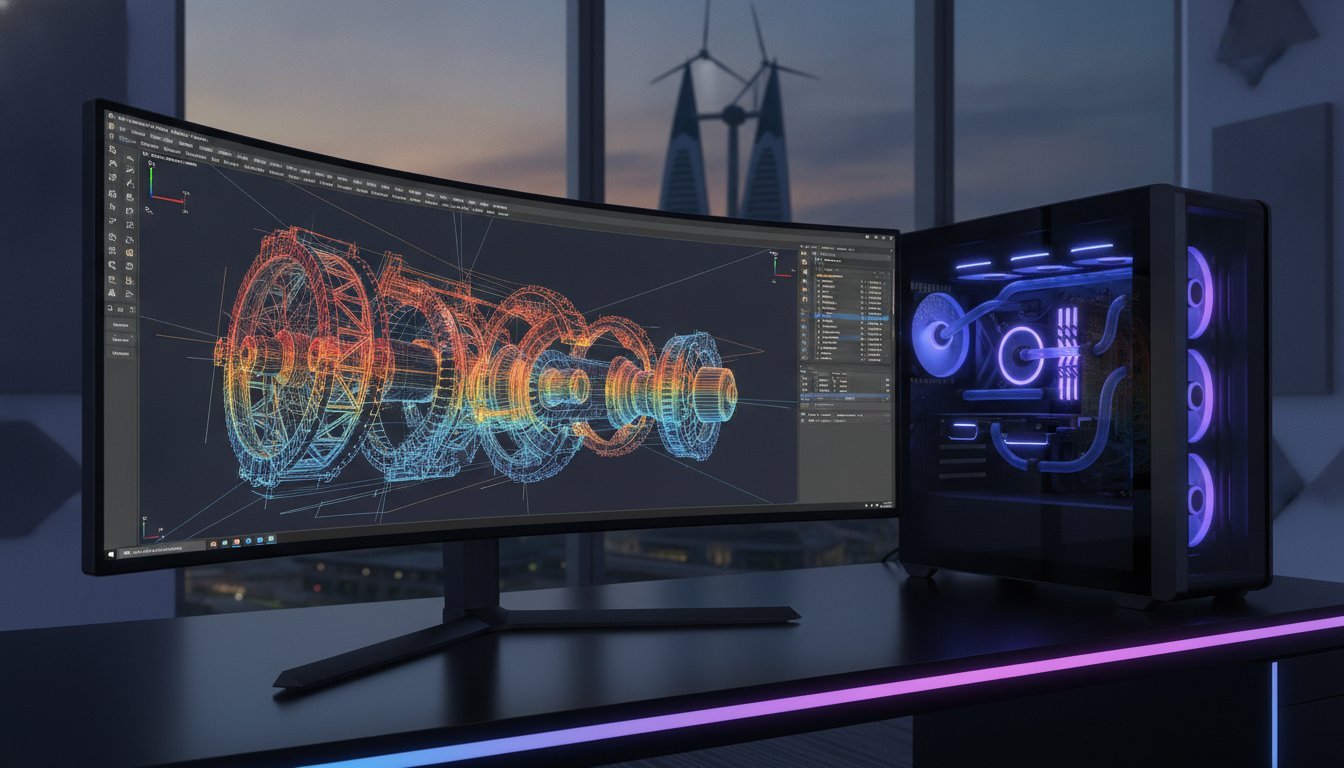

Throwing more cores at a simulation doesn’t always result in a faster solution; in fact, after 16 physical cores, inter-core communication overhead can actually slow you down. It’s a counterintuitive reality that many hardware specialists understand, yet many professionals overlook when scouting for solidworks simulation recommended pc specs. You’ve likely experienced the sting of a system crash during heavy mesh generation or the irritation of thermal throttling during an intensive overnight render. We’ve been there, and we know that a mass-produced desktop simply isn’t built to handle the internal character of high-end FEA and CFD studies.
We agree that your time is too valuable to be spent waiting on a progress bar that refuses to move. This guide promises to help you master the technical requirements for SolidWorks 2026, allowing you to build a workstation that delivers drastically reduced solve times and stable multitasking. We’ll preview the critical balance between the 5GHz+ single-core velocity of an Intel Core Ultra 9 285K and the massive memory bandwidth of the AMD Threadripper PRO 9975WX. From navigating the volatile DDR5 market to selecting the right NVIDIA Ada Generation GPU, you’re about to future-proof your hardware for the 2026-2028 cycle.
Key Takeaways
- Understand why standard CAD machines fail during simulation by identifying the specific hardware demands of mesh generation versus solver execution.
- Balance single-core velocity with multi-core density to optimize your solidworks simulation recommended pc specs for the most demanding 2026 solvers.
- Navigate the volatile 2026 hardware landscape by prioritizing high VRAM capacity and the latest DDR5 memory standards to prevent system bottlenecks.
- Secure consistent performance through professional thermal management, ensuring your workstation maintains maximum clock speeds during intensive, long-duration FEA studies.
- Discover how a bespoke Grey PC Custom Build provides a future-proof foundation that’s precisely tailored to your firm’s specific engineering ratio.
Understanding SolidWorks Simulation Hardware Requirements vs. Standard CAD
A machine that handles smooth rotation of a 5,000-part assembly isn’t necessarily equipped to simulate the thermal stress on that same model. This is the hardware gap that kills productivity. While standard CAD tasks rely heavily on single-core clock speeds for feature-tree rebuilding, simulation is a multi-stage marathon that stresses every internal component. Relying on standard CAD builds for complex analysis is like asking a sprinter to carry a 100-pound pack through a mountain range; they’ll start strong, but the collapse is inevitable.
The simulation workflow is divided into three distinct heavy-lift stages. First, mesh generation requires high single-core frequency to discretize the geometry. Second, the solver takes over, demanding high core counts and massive memory bandwidth to process the equations. Finally, post-processing relies on your GPU to visualize the results without stuttering. If your solidworks simulation recommended pc specs don’t account for all three, you aren’t just losing time. You’re losing billable hours to system crashes and thermal throttling. We’ve seen too many engineering firms settle for the minimums, only to realize that a bottlenecked PC is the most expensive piece of equipment in the office.
The Computational Load of FEA and CFD
SolidWorks Simulation utilizes the Finite Element Method (FEM) to transform physical parts into mathematical models. FEA is notoriously hungry for system memory. If your RAM capacity is too low, the system swaps data to the SSD, which is orders of magnitude slower than DDR5. Computational Fluid Dynamics (CFD) takes this a step further, requiring even higher memory bandwidth to track fluid particles through complex volumes. While linear solvers are relatively light, non-linear studies involving large deformations or complex materials will push your CPU to its absolute limit for hours on end. You need a workstation that understands the soul of these calculations, not just the numbers.
Software Versioning and OS Compatibility in 2026
In the 2026 landscape, the operating system is just as critical as the silicon. Windows 11 Pro is now the mandatory standard for SolidWorks 2026. This version of Windows includes advanced thread scheduling that’s necessary to manage the performance and efficiency cores found in the latest processors like the Intel Core Ultra 9 285K. Without it, the OS can’t properly prioritize simulation solver tasks, leading to erratic performance. Grey PC recommends Pro editions for every workstation we build. It ensures you have access to the professional-grade security and stability features that engineering firms require. Stability also depends on certified drivers. Using consumer-grade drivers for solidworks simulation recommended pc specs is a gamble that usually ends in a lost day of work.
The CPU Powerhouse: Clock Speed vs. Core Count for Solvers
The CPU is the beating heart of your workstation, but in the world of high-end analysis, it’s a heart with two very different pulses. To nail the perfect solidworks simulation recommended pc specs, you have to understand that the software doesn’t treat every task the same. Mesh generation, the foundation of every study, is almost entirely single-threaded. This means a processor with a stratospheric clock speed will always outperform a high-core-count chip that runs at lower frequencies during the initial stages of your workflow.
Interactive performance depends on that snappiness you feel when clicking through menus and generating complex meshes. We target a 5.5GHz+ boost clock for professional builds to ensure zero lag. While the Official SOLIDWORKS System Requirements provide a necessary baseline, they often fail to capture the nuance of modern hybrid architectures. For the 2026 performance tier, the battle between the Intel Core Ultra 9 285K and the Ryzen 9 9950X isn’t just about raw speed. It’s about how the silicon handles the critical hand-off between single-threaded meshing and multi-threaded solving.
When you move from meshing to the actual solve, the “Intel Direct Sparse” and “Large Problem” solvers take over. These are the heavy lifters that can actually put multiple cores to work. However, there is a point of diminishing returns. Research shows that for SolidWorks Simulation, inter-core communication overhead starts to become a bottleneck around 12 to 16 physical cores. Adding more cores beyond this point won’t necessarily slash your solve times; it might actually hinder them if the clock speed drops too low to compensate.
Frequency vs. Parallelism
Finding the sweet spot between frequency and parallelism is where most engineers get stuck. For the majority of simulation work, 16 to 32 cores represent the peak of efficiency for the 2026-2028 software cycle. If you’re choosing between flagship consumer chips, the Intel Core i9-14900K vs the Ryzen 9 9950X debate for engineers usually comes down to whether your specific workflow favors Intel’s thread director or AMD’s raw compute density and efficiency.
Workstation CPUs: When to move to Threadripper
There’s a point where even the best consumer hardware reaches its limit. If you’re running multi-physics simulations or massive assemblies with over 5,000 unique components, it’s time to look at workstation-class silicon like the AMD Threadripper PRO 9975WX. These chips aren’t just about a higher core count; they’re about the professional infrastructure surrounding the CPU. With expanded PCIe lanes for multi-GPU setups and superior memory bandwidth, these platforms prevent the data bottlenecks that throttle lesser systems. If you’re tired of your PC choking on large studies, a Grey PC Custom Build can provide the uncompromised power and reliability needed for 24/7 engineering environments.
Graphics Cards and Memory: Navigating VRAM and DDR5 Requirements
While the CPU handles the mathematical heavy lifting, your graphics card and system memory determine how smoothly you can navigate the results. For solidworks simulation recommended pc specs in 2026, the baseline has shifted. We no longer talk about 32GB of RAM as a luxury; it’s now the bare minimum. If you’re working with assemblies exceeding 5,000 unique components, 64GB of DDR5 RAM is the new professional standard. This ensures your system doesn’t choke when loading massive datasets or generating complex meshes that would otherwise spill over into much slower storage-based virtual memory.
The choice between NVIDIA RTX Professional (formerly Quadro) and GeForce RTX depends on your need for certified stability versus raw compute power. Professional cards like the RTX 5000 Ada Generation offer 32GB of VRAM and ECC support, which are critical for long-duration simulations. Error-correcting code (ECC) RAM prevents the microscopic data corruption that can lead to a system crash ten hours into a non-linear study. For the specialist who values precision over everything, this reliability is non-negotiable. However, for those focused on GPU-accelerated solvers or high-end visualization, the raw throughput of the latest consumer flagships cannot be ignored.
Certified GPUs for 2026
The NVIDIA GeForce RTX 5090 for Sale represents a massive leap in Blackwell-era performance, offering the kind of VRAM and CUDA core density that was once exclusive to the most expensive workstation cards. It’s a powerhouse for GPU-accelerated solvers. Yet, in a corporate environment, the RTX Ada Generation remains the gold standard for its certified drivers. These drivers are specifically tuned for RealView and hardware acceleration, ensuring your viewport remains fluid even when displaying complex stress plots. Avoiding the consumer card pitfall is about more than just speed; it’s about ensuring your software vendor provides full support when things go wrong.
Storage Speed: NVMe Gen5 and Data Throughput
Simulation studies generate massive amounts of temporary data known as scratch files. If your storage can’t keep up with the CPU’s output, your solve times will suffer regardless of your processor’s speed. NVMe Gen5 SSDs are now essential for professional workstations, providing the IOPS necessary to handle large study files without bottlenecking the system. For reliable data management and peak performance, the Samsung 990 Pro 2TB Buy Guide highlights how high-end drives maintain consistent write speeds. While RAID 0 can offer a slight boost in throughput, a single, high-quality Gen5 drive is usually the more stable choice for most professional engineering workflows.

Thermal Management and Stability: Ensuring Performance in High-Heat Climates
High-performance silicon generates massive heat. In the 2026 hardware landscape, processors like the Core Ultra 9 285K draw significant power during a multi-hour CFD study. If your thermal solution isn’t up to the task, the CPU will throttle, slashing your frequencies and doubling your wait times. This is the silent killer of productivity. When looking at solidworks simulation recommended pc specs, cooling is often treated as an afterthought. We treat it as the foundation of a reliable workstation. A machine that can’t maintain its boost clock is a machine that’s costing you money.
For 24/7 workstation uptime, the debate between liquid and air cooling comes down to thermal mass and reliability. While high-end air coolers are dependable, they often struggle to dissipate the 300W+ sustained loads of modern flagship CPUs in warmer climates. Liquid cooling, specifically All-In-One (AIO) units with 360mm radiators, provides the headroom needed for overnight renders and complex solves. We don’t just assemble parts; we stress-test every Grey PC Custom Build to ensure it doesn’t crash at that heartbreaking 99% solve progress mark. Our validation process simulates grueling engineering workloads in high-ambient conditions to guarantee stability when it matters most.
Advanced Cooling Solutions
Optimal airflow starts with the right chassis. We often refer clients to our Lian Li PC-O11 Dynamic Buying Guide because it represents the pinnacle of high-airflow design for 2026 builds. For high-TDP processors, a 360mm+ AIO liquid cooler is the professional choice to keep temperatures well below the throttling threshold. If you’re running multi-GPU simulation rigs for advanced parallel processing, custom loop considerations become essential. These bespoke cooling paths ensure that every component, from the VRMs to the VRAM, stays within its ideal operating window during the most intensive analysis cycles.
Professional Maintenance and Dust Prevention
Dust is the enemy of high-end hardware, especially in industrial or engineering office settings. Over time, accumulation leads to component degradation and increased fan noise as the system fights to stay cool. Implementing a positive pressure airflow configuration is our secret weapon. By ensuring more air is filtered and pushed into the case than is pulled out, we minimize internal buildup. Regular professional cleaning remains a pillar of workstation longevity. It’s a simple step that protects the internal character and “soul” of your machine, ensuring your solidworks simulation recommended pc specs continue to deliver peak performance for years to come.
Building Your Professional SolidWorks Workstation with Grey PC
Navigating the technical landscape of 2026 requires more than just a list of high-end parts. It requires a builder who understands how those components interact under the specific, grueling stress of finite element analysis. A Grey PC Custom Build isn’t just a mechanical assembly; it’s a precision-engineered solution designed to eliminate the bottlenecks that stall your innovation. We bridge the gap between theoretical solidworks simulation recommended pc specs and a physical reality that delivers uncompromised performance day after day.
Every engineering firm operates with a unique cadence. Some teams spend the majority of their week in the modeling environment, while others run complex CFD studies that last for days. We tailor your hardware to your specific CAD/FEA ratio. This ensures you aren’t overpaying for core counts you’ll never utilize or under-speccing the VRAM capacity that your visualization tasks demand. By focusing on the internal character of the technology, we create machines that feel like a natural extension of your engineering expertise rather than just another office tool.
Tailored Professional Workstations
We take the high-performance DNA found in our Ultimate Gaming PC Build 2026 and refine it for the elite professional sector. While high-end gaming rigs focus on burst speed, our professional workstations are built for sustained, high-heat endurance. Every machine we produce undergoes a rigorous 48-hour burn-in protocol. We push the silicon to its absolute thermal limit before it ever leaves our facility. This validation process ensures your rig won’t blink when it encounters a million-element mesh. For engineering teams, we also provide local support and server management solutions to ensure your entire department remains synchronized and productive.
Consultation and Quote
Corporate procurement shouldn’t mean settling for generic, mass-produced hardware that chokes on professional workloads. We understand the bulk requirements of modern firms, and while we can assist with standard office units like the Dell Optiplex or Lenovo series for administrative tasks, your engineering core deserves better. Future-proofing your workflow for the 2026-2028 cycle involves integrating AI-accelerated solvers and high-bandwidth DDR5 memory into a cohesive, stable platform. We are committed to precision over generic solutions and quality over mass-produced alternatives. Requesting a bespoke quote is the first step toward a transformative hardware experience. Build your custom SolidWorks workstation with Grey PC today and secure the power your projects deserve.
Accelerate Your Engineering Future
Building a workstation for the 2026-2028 software cycle requires a departure from generic retail advice. You’ve seen how the delicate balance between single-threaded mesh velocity and multi-threaded solver density defines the most efficient solidworks simulation recommended pc specs. It’s about ensuring your hardware possesses the internal character to handle the heat of a non-linear study without the heartbreak of a 99% progress crash. By prioritizing 64GB of DDR5 RAM and the massive VRAM of the latest Ada Generation, you transform your workstation from a simple tool into a true competitive advantage.
Grey PC stands as a specialist in high-performance 3D rendering and professional workstations. We aren’t just builders; we are your technical partners. As official hardware partners for premium components from Dell and Lenovo, we provide the elite infrastructure your firm demands. From expert technical support to complex server management for corporate clients, we ensure your engineering team never waits on a progress bar. Our 48-hour burn-in protocol guarantees that your machine is ready for the most grueling analysis tasks from day one.
Design your custom SolidWorks workstation with Grey PC and reclaim your billable hours. Let’s build something exceptional together.
Frequently Asked Questions
Is a gaming PC good enough for SolidWorks Simulation?
A gaming PC can run basic simulations, but it lacks the certified drivers and ECC memory necessary for professional reliability. While consumer GPUs offer impressive raw speed, they don’t support RealView hardware acceleration or provide the same level of technical support from Dassault Systèmes. For engineers, a bespoke workstation is a superior investment that avoids the frequent crashes and graphical glitches associated with consumer-grade hardware during complex analysis.
How much RAM does SolidWorks Simulation actually use for large studies?
For assemblies with over 5,000 unique components, 64GB of DDR5 RAM is the new professional baseline. Large studies can easily consume 128GB or more if the mesh is highly refined or involves multi-physics. If your system runs out of physical memory, it swaps data to the SSD, which drastically increases solve times. We always recommend over-provisioning RAM to keep your simulation data in the fastest possible memory tier.
Does SolidWorks Simulation support multi-core processors?
Yes, SolidWorks Simulation supports multi-core processors, though the efficiency varies by solver. The Intel Direct Sparse and Large Problem solvers utilize multiple cores effectively to slash solve times. However, you’ll hit a point of diminishing returns around 12 to 16 physical cores due to inter-core communication overhead. It’s often better to prioritize higher clock speeds of 5.5GHz or more over extreme core counts to maintain performance during the meshing phase.
Which graphics card is best for SolidWorks Simulation in 2026?
The NVIDIA RTX 5000 Ada Generation is the premier choice for 2026 professional workstations. It offers 32GB of VRAM and the stability of certified drivers, which are essential for visualizing complex stress plots and fluid paths. While the RTX 6000 Ada provides even more headroom for massive multi-physics studies, the 5000 series hits the sweet spot for most solidworks simulation recommended pc specs by balancing cost and elite performance.
Why does my simulation solve time increase significantly halfway through?
This usually happens because your system has either run out of RAM or triggered thermal throttling. When the physical memory is full, the OS moves data to the slower “page file” on your storage drive, which creates a massive bottleneck. Alternatively, if your CPU reaches its thermal limit during an intensive solve, it drops its clock speed to protect the silicon. Proper cooling and sufficient DDR5 RAM are the primary solutions to this issue.
Do I need an SSD for SolidWorks Simulation?
An NVMe Gen5 SSD is mandatory for any professional 2026 workstation. Simulation creates massive temporary “scratch files” that require high write speeds and low latency to process efficiently. Using a traditional HDD or even an older SATA SSD will cause a significant data bottleneck that throttles your CPU. We recommend a high-end drive like the Samsung 990 Pro to ensure your storage never limits your solver’s output.
Can I run SolidWorks Simulation on a laptop?
You can run simulations on a mobile workstation, but expect performance trade-offs compared to a desktop Grey PC Custom Build. Laptops face stricter thermal limits and power constraints, which often lead to aggressive throttling during long, iterative solves. If you must simulate on the go, ensure the laptop features a certified professional GPU and a high-wattage cooling solution to maintain stability under heavy 24/7 workloads.
What is the difference between a linear and non-linear solver in terms of hardware?
Linear solvers assume small displacements and constant material properties, making them relatively fast and less taxing on your hardware. Non-linear solvers are iterative and must recalculate the stiffness matrix multiple times as the model deforms. This process is significantly more demanding on your CPU and RAM. It requires the robust architecture and professional thermal management found in high-end workstations to finish these complex studies in a reasonable timeframe.