
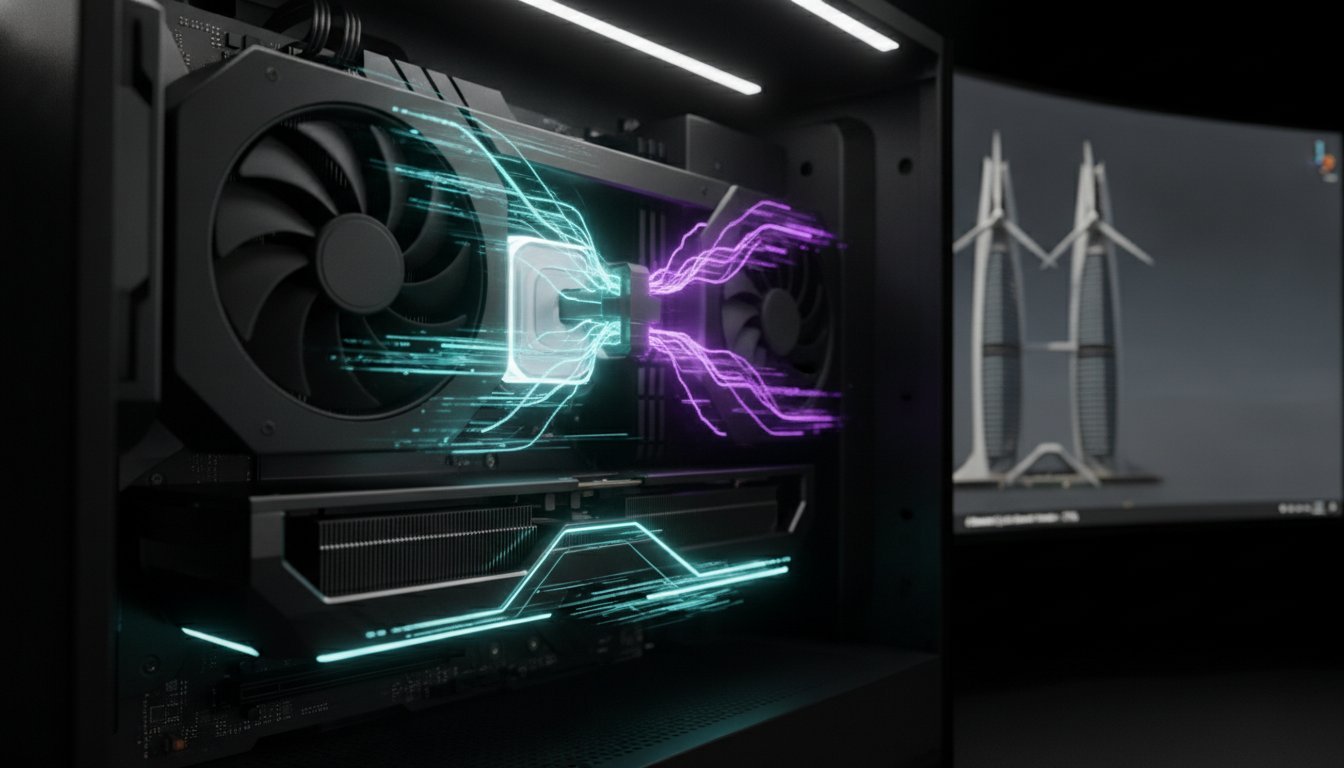

What if the flagship GPU you just installed is actually the bottleneck preventing you from finishing your most ambitious 3D scene? It’s a frustrating reality for creators who find that even an RTX 5090 can hit a “Complexity Wall” when high-resolution textures and geometry exceed its 32GB of VRAM. You’ve likely felt the sting of an “Out of Memory” error during a final bake or watched your workstation struggle with heat during a long weekend of processing. We know that your hardware isn’t just a tool; it’s the engine of your creative legacy.
You shouldn’t have to choose between raw speed and intricate detail. This guide helps you master the technical trade-offs of gpu rendering vs cpu rendering for blender so you can build a workstation that slashes render times without sacrificing scene complexity. We’ll explore how the latest OptiX and CUDA enhancements in Blender 5.1 redefine your 2026 workflow. You’ll gain a clear decision framework for hardware investment, ensuring your next custom build is a stable, high-performance masterpiece that handles everything from real-time EEVEE previews to massive Cycles environments with precision.
Key Takeaways
- Master the technical trade-offs of gpu rendering vs cpu rendering for blender to eliminate bottlenecks and slash your project timelines.
- Identify the “Complexity Wall” where VRAM limits force a shift to high-core-count processors for memory-intensive scenes.
- Apply the 70/30 budget rule to balance flagship graphics cards with high-performance DDR5 RAM for a perfectly optimized workstation.
- Discover how elite thermal engineering and bespoke workstation assembly prevent overheating and protect your investment during demanding production cycles.
The Fundamentals of Blender Rendering Engines in 2026
Understanding the core mechanics of Rendering (computer graphics) is the first step toward building a machine that doesn’t buckle under pressure. In 2026, the debate around gpu rendering vs cpu rendering for blender has shifted from which is better to how do they collaborate. While your GPU acts as the powerhouse for light calculations, your CPU remains the architect of the scene. It manages the complex logic of scene preparation, geometry loading, and BVH building before a single pixel even appears. If this preparation phase lags, your expensive graphics card sits idle, wasting valuable production time.
The old tiling workflow is a relic of the past. Since the advent of Cycles X, Blender utilizes a unified kernel that renders the entire frame progressively. This means you don’t wait for small squares to finish. Instead, the hardware works in parallel to refine the entire image at once. For professionals, this transition has revolutionized the feedback loop. It makes the choice of hardware more critical than ever for maintaining a fluid creative flow. You need a system that balances compute-heavy rendering with memory-heavy scene preparation to avoid the dreaded Complexity Wall.
Cycles X: The Evolution of Path Tracing
Cycles X is the primary ray-tracing engine for professional photorealism. In 2026 workflows, we prioritize Time to First Pixel. This metric measures how quickly your hardware can prep a scene and start showing results. A high-end CPU is vital here. It handles the memory-heavy tasks that occur before the GPU takes over. If your processor is weak, you’ll sit staring at a blank screen while the system calculates textures. This happens even if you have a top-tier graphics card. Professional 3D Rendering Workstations must balance these roles to avoid idle hardware and maximize output.
Eevee Next and Real-Time GPU Workflows
Eevee Next has blurred the lines between real-time speed and path-traced quality. By 2026, it’s matured into a production-ready engine that leverages hardware-accelerated ray tracing. This allows artists to skip the heavy path tracer for many projects. You just need the VRAM to support it. GPU memory is the currency of the viewport. If you run out of VRAM, Eevee Next will stutter or crash. High-performance builds must account for this by pairing massive VRAM buffers with low-latency DDR5 RAM to keep the data flowing without interruption.
The Speed King: Why GPU Rendering Dominates Modern Workflows
The speed gap is no longer a gap; it’s a canyon. When evaluating gpu rendering vs cpu rendering for blender, the primary advantage of the graphics card lies in its massive parallel architecture. While a flagship CPU might offer 64 or 96 threads, a modern GPU like the RTX 5090 utilizes thousands of specialized cores designed for a single purpose: calculating light. In Blender 5.1, this allows GPUs to render most scenes 5 to 15 times faster than even the highest-end processors. It’s the difference between waiting an hour for a single frame and finishing it in under five minutes.
Modern 2026 workflows rely on more than just raw CUDA power. Specialized RT (Ray Tracing) cores handle complex light bounces with surgical precision, offloading the heavy lifting from the general compute units. This hardware acceleration is what makes real-time path tracing possible in the viewport. Meanwhile, Tensor cores accelerate AI-denoising, effectively cutting total render times by half by cleaning up noise in a fraction of the time it takes for traditional sampling. If you want to push these limits, our 3D Rendering Workstations are engineered to harness this specific hardware synergy for maximum throughput.
NVIDIA OptiX vs. CUDA: Choosing the Best Backend
OptiX is the definitive choice for anyone running RTX 40-series or the new 50-series Blackwell architecture. Unlike traditional CUDA, OptiX leverages the dedicated hardware ray-tracing cores to accelerate intersection tests. Benchmarks in the latest Blender builds show that OptiX can outperform CUDA by up to 40% in scenes with heavy motion blur or complex geometry. You should check the official Blender Manual for specific compatibility notes. While OptiX is the speed king, some legacy plugins or specific OSL (Open Shading Language) shaders still require a CUDA or CPU fallback to function correctly.
Multi-GPU Scaling: Doubling Your Output
Blender excels at multi-GPU scaling without the need for SLI or NVLink. You can simply add a second card, and Cycles will distribute the workload across both units almost linearly. However, adding a third or fourth card often leads to diminishing returns due to PCIe bandwidth limits and increased software overhead. Power and heat are the real obstacles. A dual-RTX 5090 configuration pulls over 1,100 watts on its own, requiring a high-capacity power supply and elite-tier airflow. We build our systems with specific chassis designs to ensure these high-octane components don’t throttle during the heat of a 48-hour render marathon.
The CPU’s Last Stand: When Complexity Outgrows Your Graphics Card
The “Complexity Wall” is the silent killer of 3D production. While we’ve highlighted the undeniable speed of the RTX 50-series, even a 32GB buffer can vanish when you’re dealing with 8K textures, millions of polygons, and complex volumetrics. This is where the debate of gpu rendering vs cpu rendering for blender takes a sharp turn toward the processor. When a GPU runs out of VRAM, the render often fails instantly or triggers a massive performance hit. CPUs have direct access to your system RAM. This allows them to chew through scenes that would leave a graphics card paralyzed.
Stability is the final frontier for professional creators. Studios cannot afford a crash at 3 AM during a critical deadline. CPUs are notoriously more resilient to memory pressure. They rarely experience the “crash to desktop” errors that plague GPUs when they hit their physical limit. For long-term simulations and heavy proceduralism, the CPU offers a level of reliability that even the best drivers can’t match. It’s the ultimate insurance policy for your most demanding projects.
Memory Management: VRAM vs. System RAM
In 2026, 128GB of DDR5 RAM is the professional baseline for a stable workstation. If your scene exceeds the onboard VRAM of your card, Blender can utilize “Out-of-Core” rendering. This technique allows the GPU to borrow system memory, but the speed penalty is severe. You’ll see render times skyrocket because data must travel across the PCIe bus. The specific point where CPU rendering becomes more cost-effective is when you’re forced to choose between a standard flagship card and an enterprise-grade GPU that costs three times as much just for a larger memory buffer. At that price gap, a high-core-count CPU with massive system RAM provides better value for ultra-complex scenes.
Threadripper and High-Core-Count Performance
High-core-count processors like the latest Threadripper series aren’t just for final renders. They are the backbone of the “pre-processing” phase. Before your GPU can even begin path tracing, the CPU must build the Bounding Volume Hierarchy (BVH). This is a serial task that benefits from high clock speeds and massive thread counts. A weak CPU will bottleneck even the fastest GPU. It forces your graphics card to sit idle while the processor struggles to organize scene data. If you’re running complex Open Shading Language (OSL) scripts or procedural geometry, the CPU remains the only stable choice for error-free output.

Strategic Hardware Selection: Building the Ultimate Blender Workstation
Building a professional workstation in 2026 requires a surgical approach to budget allocation. We advocate for the 70/30 rule. Spend 70% of your hardware funds on the GPU and its immediate infrastructure. Reserve the remaining 30% for a high-clock-speed CPU and system memory. This strategy prevents you from over-investing in a massive core count that stays dormant during Cycles renders. When deciding on gpu rendering vs cpu rendering for blender, balance is your greatest asset. A flagship card is only as good as the motherboard and power supply that sustain it. If you ignore the synergy between these parts, the choice between gpu rendering vs cpu rendering for blender becomes irrelevant because your system will throttle before the job is done.
The NVIDIA GeForce RTX 5090 for sale represents the 2026 gold standard for 3D production. With 32GB of GDDR7 VRAM, it effectively pushes the “Complexity Wall” further back than ever before. To keep these massive assets moving, pair your GPU with NVMe Gen5 storage. These drives offer the bandwidth necessary to load multi-gigabyte scene files and 8K texture libraries in seconds rather than minutes. It’s the difference between a fluid creative session and a stuttering viewport.
Thermal Management for Professional Rendering
Modern hardware generates intense heat. The RTX 5090 pulls a staggering 575 watts under load. Managing this thermal output is critical for component longevity. For 24/7 render nodes, high-end liquid cooling is often the preferred choice to maintain consistent boost clocks. However, premium air cooling remains a reliable, low-maintenance alternative for many studios. Your choice of case is equally important. Check out our Lian Li PC-O11 Dynamic Buying Guide to see how specific chassis designs optimize airflow for multi-GPU setups.
The 2026 Component Checklist
- GPU: Look for a minimum of 16GB VRAM. 24GB or 32GB is preferred for professional environment design.
- CPU: Prioritize high single-core clock speeds (5.5GHz+) for viewport snappiness. High core counts are secondary unless you frequently fall back to CPU rendering.
- PSU: A 1400W Platinum-rated unit is now the standard for builds featuring Blackwell-era cards.
Ready to build your masterpiece? Explore our Grey PC Custom Build options for a workstation that never compromises on power.
The Grey PC Edge: Bespoke Workstations for 3D Professionals
Off-the-shelf computers are designed for general bursts of activity. They aren’t built to withstand the relentless 100% thermal load required by professional 3D production. When you push a standard machine through a complex Cycles bake, the lack of surgical airflow often leads to thermal throttling or hardware failure. We understand that the debate over gpu rendering vs cpu rendering for blender is secondary to the stability of the system itself. If your hardware cannot maintain peak boost clocks under pressure, your render times will suffer regardless of which engine you choose.
Our precision assembly process transforms a collection of high-end parts into a cohesive creative engine. We don’t just plug components into a motherboard; we optimize the BIOS and custom-tune fan curves specifically for the thermal profile of long-form rendering. This attention to detail ensures your machine remains quiet during viewport work and stays cool during a 72-hour render marathon. Every build undergoes rigorous stress testing to ensure the internal character of the technology matches the ambition of your projects.
Custom Builds vs. Mass-Produced Workstations
Choosing a bespoke rig means every component is selected for its specific contribution to your workflow. Mass-produced workstations often cut corners on power delivery or cooling to hit a retail price point. We personify performance by creating aesthetic builds that refuse to compromise on raw power. This philosophy extends across our entire lineup. For those who also handle high-resolution post-production, our Video Editing Workstation guide provides deeper insights into how we optimize hardware for the full creative lifecycle.
Consultation and Professional IT Services
We provide more than just hardware. Our team offers specialized consultations to tailor your machine to your exact software stack. Whether you’re balancing gpu rendering vs cpu rendering for blender or building a real-time environment in Unreal Engine, we ensure your hardware meets the specific demands of your industry. For Bahraini creative agencies and freelancers, we offer bulk procurement and hardware cleaning services to keep your studio running at peak efficiency. We invite you to experience the transformative power of a Grey PC Custom Build for your next professional milestone.
Master Your Creative Output
The path to professional-grade 3D production requires a balanced ecosystem rather than just a collection of expensive parts. You now understand that the debate over gpu rendering vs cpu rendering for blender is actually a strategy of synergy. By leveraging the raw speed of the RTX 50-series for light calculations and the stability of high-core-count CPUs for memory-intensive scenes, you eliminate the bottlenecks that kill productivity. Your hardware should be an extension of your creative will; it shouldn’t be a limitation that forces you to compromise on scene complexity.
We specialize in crafting high-performance 3D rendering rigs that breathe life into your most ambitious projects. Our builds feature premium components like DDR5 RAM and Blackwell-era graphics cards; all backed by expert national technical support and precision assembly. Don’t settle for mass-produced limitations when you can have a bespoke machine with a soul. Build Your God-Tier Blender Workstation with Grey PC today. Your legacy is waiting to be rendered with absolute precision and unmatched power.
Frequently Asked Questions
Is GPU rendering always better than CPU rendering in Blender?
No, GPU rendering is not always the superior choice for every scenario. While graphics cards offer a massive speed advantage for most scenes, the CPU remains the king of complexity. If your project features massive architectural environments or 8K texture sets that exceed your VRAM, the CPU can access your entire system RAM pool to finish the job without crashing.
Can I use multiple different GPUs for rendering in Blender?
Yes, Blender allows you to utilize multiple GPUs simultaneously, even if they are different models or generations. You can pair a flagship RTX 5090 with an older RTX 4080 to scale your performance across both cards in the Cycles settings. Just keep in mind that your power supply must be robust enough to handle the combined wattage of both units under a full load.
Does Blender use System RAM if my GPU runs out of VRAM?
Yes, Blender supports “Out-of-Core” rendering, which enables the GPU to borrow memory from your system RAM. This feature is a lifesaver that prevents your render from failing when you hit the VRAM limit. However, it introduces a significant performance penalty because data must travel through the PCIe bus, making it much slower than rendering entirely within the GPU’s dedicated memory.
Which is better for Blender: NVIDIA or AMD GPUs?
NVIDIA remains the definitive choice for professional Blender workflows in 2026 due to the mature OptiX backend. While AMD hardware has made strides with HIP support, NVIDIA’s dedicated RT and Tensor cores provide a significant speed advantage in Cycles. When evaluating gpu rendering vs cpu rendering for blender, NVIDIA’s ecosystem offers the most reliable hardware acceleration for ray-traced photorealism.
How much RAM do I need for a 3D rendering workstation in 2026?
128GB of DDR5 RAM is the professional baseline for a stable 3D workstation in 2026. This capacity provides the necessary headroom for complex scene preparation, massive geometry, and multitasking between Blender and other creative apps. If you frequently handle high-resolution fluid simulations or dense photogrammetry, stepping up to 256GB ensures your system remains responsive during the most demanding pre-processing phases.
Does the CPU affect GPU rendering speed in Blender?
Yes, your CPU plays a critical role in the “Time to First Pixel” by handling all scene preparation tasks. Before the GPU begins path tracing, the processor must load textures, synchronize data, and build the Bounding Volume Hierarchy (BVH). A weak CPU will bottleneck even the fastest graphics card, forcing it to sit idle while the processor struggles to organize the scene data.
Is liquid cooling necessary for a 3D rendering PC?
Liquid cooling is highly recommended for professional render nodes but is not strictly mandatory. Modern high-end components generate intense thermal loads that can cause standard air coolers to struggle during a 48-hour render marathon. An elite liquid cooling solution maintains consistent boost clocks and protects your hardware from heat-induced longevity issues, ensuring your machine stays quiet and cool under pressure.
What is the best GPU for Blender rendering in 2026?
The NVIDIA GeForce RTX 5090 is the undisputed gold standard for Blender rendering in 2026. Its 32GB of GDDR7 VRAM and advanced Blackwell architecture provide the highest throughput for both Cycles and EEVEE Next. It’s the ultimate tool for artists who want to master gpu rendering vs cpu rendering for blender by pushing the limits of scene complexity without sacrificing speed.