
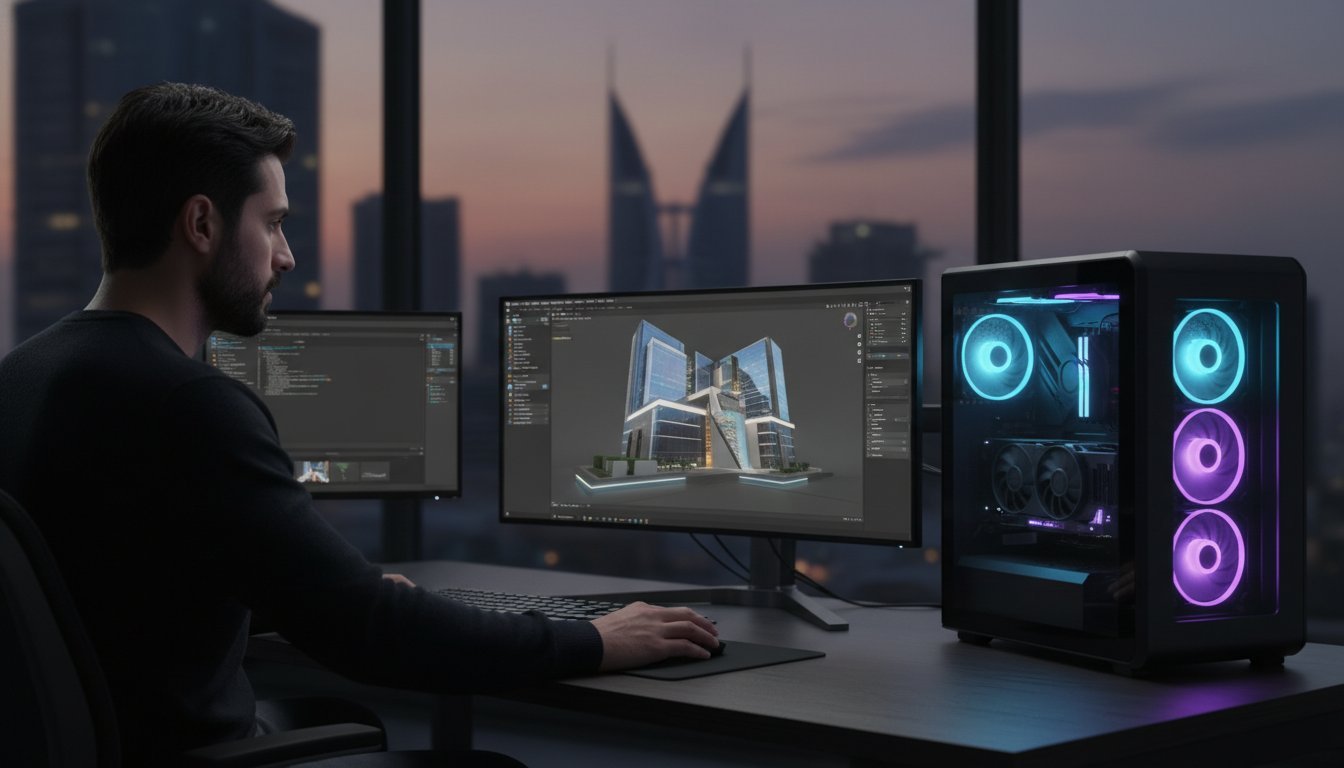

You can’t just throw the most expensive components into a case and expect a seamless creative flow; a true blender workstation is a balanced ecosystem where thermals dictate the soul of performance. It’s exhausting to watch your viewport stutter during complex scenes or wait hours for a Cycles bake that should take minutes. We’ve all been there, staring at a frozen screen while the fans scream in protest. You deserve a machine that keeps pace with your imagination rather than acting as a bottleneck to your professional productivity.
This guide will show you how to master the technical requirements for Blender 5.1 to build a machine that eliminates lag and slashes your render times. We’ll break down the specific hardware choices, from the raw power of the NVIDIA GeForce RTX 5090 to the precision of high-capacity DDR5 RAM, ensuring your investment is future-proof for 2026 and beyond. You’ll learn exactly how to achieve lightning-fast Cycles rendering and smooth real-time playback in Eevee. It’s time to stop fighting your hardware and start creating with the speed and precision that elite 3D artistry demands.
Key Takeaways
- Balance your build by prioritizing high single-core frequency for fluid modeling and multi-core muscle for complex simulations.
- Select a blender workstation that leverages NVIDIA’s OptiX and CUDA APIs to achieve the fastest possible render times in 2026.
- Identify why 32GB of high-frequency DDR5 RAM is the absolute baseline for maintaining stability in professional 3D environments.
- Master advanced cooling strategies to prevent thermal throttling and protect your hardware during grueling, multi-hour Cycles bakes.
- Discover the benefits of a bespoke assembly process that transforms premium components into a precision-engineered creative tool.
Understanding the Blender Workflow: Modeling vs. Rendering Requirements
Building a high-performance blender workstation requires more than just picking the most expensive parts from a catalog. It’s about understanding the internal character of the software itself. Blender, the open-source 3D suite, operates as two distinct engines under one hood. One engine handles the creative interaction in the viewport; the other drives the brutal calculation of light and physics. If you don’t balance these requirements, you’ll end up with a machine that’s fast at rendering but agonizingly slow to actually work in. This hardware split is the most common pitfall for professionals today.
Blender’s viewport relies almost entirely on the “primary” CPU core for most tasks. While the Cycles engine can utilize every thread you throw at it, the act of moving a vertex or posing a bone is a serial process. This means your computer must finish one calculation before starting the next. To eliminate lag, you need a processor that prioritizes raw clock speed over sheer core count during the design phase. A machine designed for 3D artistry must be as agile during the creation process as it is powerful during the final export.
Modeling and Animation: The Single-Core Hero
When you’re pushing vertices or posing a character, high IPC (Instructions Per Clock) is the absolute king of a fluid workflow. These tasks don’t benefit from dozens of cores. In fact, a 64-core processor with lower clock speeds might feel sluggish during complex mesh manipulation. You need a processor that screams in single-threaded performance. This ensures that rigging and animation playback stay snappy, even when your scene density increases. Don’t be fooled by high-end server chips for modeling; they often lack the punchy response times needed for real-time creativity.
Rendering and Physics: The Multi-Core Powerhouse
Once you hit “Render,” the workload shifts entirely. Cycles is a path-traced engine that thrives on parallel processing. It breaks the image into samples, distributing the load across every available GPU core and CPU thread. This is where core density and GPU acceleration via NVIDIA’s OptiX and CUDA become your best friends. Physics simulations for fluid, cloth, or fire also demand massive multi-core throughput. However, raw power is nothing without control. Long-term bakes generate immense heat. Your blender workstation must have the thermal stability to maintain these peak speeds without throttling during a twelve-hour render session.
Eevee changes the game by using rasterization, similar to a high-end game engine. It relies heavily on your GPU’s raw rasterization power and VRAM rather than path-tracing calculations. While Cycles delivers photorealism through heavy math, Eevee gives you instant feedback. A professional build must accommodate both, ensuring your real-time playback is as smooth as your final production renders are fast.
Selecting the Core: CPU and GPU Synergy for 2026
Success in 3D production isn’t about raw power alone. It’s about the precision-engineered synergy between your processor and graphics card. In 2026, the landscape has shifted toward high-efficiency architectures that demand a sophisticated approach to component selection. Whether you’re eyeing the Intel Core Ultra 200 series or the Ryzen 9000 lineup, your choice dictates how effectively your blender workstation translates creative vision into digital reality. According to in-depth hardware analysis from industry leaders, the balance between single-core speed and multi-threaded throughput remains the most critical factor for a stable production environment.
The relationship between these two components is transformative. While the GPU handles the heavy lifting of light transport, the CPU manages the complex logic of the scene. If these two parts aren’t in sync, you’re essentially driving a supercar with a clogged fuel line. You need a build that respects the internal “soul” of the technology, ensuring every watt of power is converted into creative momentum.
The GPU: Your Rendering Engine
NVIDIA remains the undisputed king of the Blender ecosystem. The combination of CUDA and OptiX APIs provides a performance floor that competitors simply can’t touch. OptiX denoising is a literal game-changer; it slashes render times by using AI-driven calculations to clean up noisy path-traced images in a fraction of the time required for traditional sampling. While raw clock speeds are impressive, VRAM capacity is the metric that truly defines a professional’s ceiling. If you run out of Video RAM, Blender crashes or falls back to “Out of Core” rendering, which is agonizingly slow. For those handling massive environment sets or high-resolution textures, the NVIDIA GeForce RTX 5090 for sale represents the absolute pinnacle of 2026 performance. It delivers a staggering 10,016.42 benchmark score, though you should be prepared for prices 15-32% above MSRP due to the current GDDR7 memory shortage. When comparing the 5090 to the 5080, the ROI for professionals lies in the 5090’s superior VRAM buffer, which prevents the bottlenecks that stall large-scale projects.
The CPU: The Workstation Architect
The CPU is the silent architect of every scene. Before your GPU can even begin its work, the processor must handle the “BVH Building” phase. This is where the software calculates the spatial relationships of every object in your 3D space. If your CPU is weak, your GPU will sit idle, waiting for data. For most creators, a high-clock mainstream chip like the Intel Core Ultra 9 285K or the Ryzen 9 9950X3D offers the best balance of price and performance. However, if your workflow involves heavy fluid or fire simulations, upgrading to an HEDT platform like the Threadripper PRO 9995WX becomes a necessity. When deciding on the right foundation, reviewing the Intel Core i9-14900K vs the Ryzen 9 9950X can help you understand how these architectures handle Blender 5.1’s specific demands. If you’re ready to move beyond generic hardware, consider exploring a bespoke Grey PC custom build tailored to your specific creative requirements.

Memory and Storage: Eliminating Viewport Lag and Crashes
Viewport lag and sudden crashes are the silent killers of creative momentum. While your GPU handles the pixels, your memory and storage handle the data that makes those pixels possible. In 2026, 32GB of DDR5 RAM is the absolute floor for any serious blender workstation. Anything less, and you’ll find yourself battling “Out of Memory” errors the moment you introduce high-resolution textures or complex geometry. When your system runs out of physical RAM, it starts swapping data to your drive. This process is thousands of times slower; it leads to the dreaded stuttering that ruins your creative flow.
Don’t ignore the hidden cost of slow storage. Your drive speed affects everything from how fast Blender opens to how quickly your “undo” history responds. High-frequency DDR5 memory and NVMe Gen5 storage work together to ensure your data stays in the fast lane. Integrating a comprehensive build guide strategy into your hardware selection ensures you never hit a technical wall mid-project.
RAM: The Artist’s Canvas
Think of your RAM as the physical space available for your scene to exist while you work. Memory isn’t just about capacity; it’s about speed. For professionals, 64GB is the sweet spot for most projects. However, if you’re building massive environments or high-poly sculpting, jumping to 128GB is a wise investment. This extra headroom allows you to multitask seamlessly between Blender, Substance Painter, and Photoshop without the system choking. You’ll notice the difference in scene loading and data transfer between your CPU and GPU immediately. If you also work across creative applications like Premiere Pro or DaVinci Resolve, understanding how much RAM for video editing your full pipeline demands will help you size your memory kit correctly from the start.
Storage Strategy for 3D Projects
Speed is nothing without reliability. Your storage configuration dictates how fast you can save, undo, and scrub through image sequences. NVMe Gen5 storage has transformed the autosave experience. It’s now nearly instantaneous. We recommend a 3-drive setup for maximum efficiency. Use a 500GB+ NVMe SSD for your OS and apps. Dedicate a second, high-performance drive for active project files. For a deeper look at hardware reliability, check out the Samsung 990 Pro 2TB guide. Finally, use a high-capacity SATA SSD or HDD for long-term archives. High read speeds are vital when you’re scrubbing through 4K image sequences in the compositor. Consumer-grade drives often fail to maintain the sustained speeds required for professional 3D production.
How to Optimize Your Build for Maximum Stability and Thermal Control
Raw power is useless if your system throttles under pressure. A high-performance blender workstation faces its greatest challenge during 100% render loads, where every component generates maximum heat for hours on end. In regions with high ambient temperatures, often referred to as the “Middle East Factor,” standard cooling configurations often fail. You need a thermal strategy that goes beyond the basics to ensure your hardware maintains its “soul” and performance integrity. Stability isn’t just a luxury; it’s the foundation of professional reliability. The same thermal discipline that defines a great blender workstation also applies to a professional video editing workstation, where sustained 8K playback and export loads demand identical levels of cooling precision.
Choosing between air cooling and AIO liquid cooling depends on your specific processor’s TDP. For high-end chips like the Intel Core Ultra 9 or Ryzen 9950X, a 360mm or 420mm AIO is typically necessary to prevent thermal downclocking. If you prefer the fail-safe nature of air cooling, only the most massive dual-tower heatsinks will suffice. Regardless of the cooler, your case must prioritize airflow over aesthetics. A sealed glass box might look elite, but it will turn your expensive GPU into a space heater during a long Cycles bake.
Mastering the Airflow: Case and Fan Configuration
Positive pressure is your best defense against dust and heat. By ensuring more air is filtered into the case than exhausted, you prevent dust from seeping through unfiltered gaps. This is vital for maintaining long-term component health in professional rigs. The Lian Li PC-O11 Dynamic remains a premier choice for 2026 because of its versatile radiator mounting points. Position your CPU radiator as an intake to provide the cooler with fresh, ambient air, while ensuring your GPU has a direct path for exhaust. This synergy prevents one component from “soaking” the other in recycled heat.
Power Delivery: The Unsung Hero
The power supply is the heart of your machine. An RTX 50-series build can see massive power draw, and you need a high-efficiency 80+ Platinum PSU to reduce wasted energy that manifests as extra heat. Headroom is essential; it prevents system crashes during peak transient spikes when both the CPU and GPU demand maximum current simultaneously. A 1200W+ PSU is an absolute necessity for dual-GPU Blender setups to ensure consistent power delivery under load. Don’t cut corners on your power delivery if you want a machine that survives the most demanding projects. If you’re ready to invest in a system that refuses to quit, explore our bespoke 3D Rendering Workstations and experience the difference of professional-grade assembly.
Finally, take control of your acoustics and thermals by setting custom fan curves. Don’t rely on “Silent” presets that allow temperatures to creep up before the fans react. Set a proactive curve that ramps up fan speeds when the GPU hits 60°C. This keeps the thermal mass of your heatsinks manageable before the render reaches its peak intensity.
The Grey PC Signature: Bespoke Blender Solutions for Professionals
A professional blender workstation isn’t just a mechanical assembly of parts; it’s a precision instrument that mirrors the ambition of the artist. At Grey PC, we don’t just sell computers. We build machines that understand the internal character and soul of the technology. Our process is a transformative experience where we translate your specific creative bottlenecks into a bespoke hardware solution. Every machine that leaves our workshop carries the weight of our expertise and a commitment to your long-term success. We believe that the relationship between a creator and their tools is sacred, and our builds reflect that elite standard of craftsmanship.
Before any build reaches your studio, it undergoes a grueling stress-testing phase. We simulate 100% render loads for extended periods to ensure your system won’t flinch during the most demanding Cycles bakes. We monitor thermals, power stability, and clock consistency with an elite level of scrutiny. This ensures that when you hit render on a deadline-critical project, your hardware remains a reliable partner rather than a point of failure. We don’t just hope for stability; we engineer it through rigorous validation.
Why Custom Beats Pre-built for 3D Artists
Pre-built machines are often designed for the average user, resulting in generic configurations that compromise on critical 3D bottlenecks. A Grey PC custom build allows for precision selection of every component. We prioritize high-end motherboards with robust VRMs and modular power supplies that allow for future GPU upgrades. This future-proofing ensures your investment remains relevant as Blender 5.2 and beyond push the boundaries of what’s possible. Beyond performance, a professional machine should inspire. Our builds balance aesthetics with brutal performance; they create a workspace that reflects your professional identity and sparks creativity.
Grey PC Technical Advantage
Our deep understanding of hardware extends across the entire 3D industry. We leverage our extensive experience in building V-Ray rendering workstations to optimize our Blender configurations for maximum throughput. Being based in Bahrain means you receive national technical support and hardware servicing that international retailers simply can’t match. We provide dedicated cleaning and maintenance services to keep your fans clear and your thermals optimal in our unique climate. This localized expertise ensures your machine survives the environment as well as the workload. Don’t settle for a commodity when you can have a bespoke masterpiece. Consult with a Grey PC specialist for your custom Blender build today and take the first step toward a lag-free creative future.
Claim Your Competitive Edge in 3D Production
Master the hardware split between agile viewport interaction and brutal rendering power to redefine your professional workflow. Your machine’s ability to maintain peak performance under load depends on the precision-engineered synergy of its components. From the massive VRAM buffer of the RTX 50-series to the lightning-fast response of DDR5 memory, every choice dictates your creative ceiling. A truly elite blender workstation isn’t just a purchase; it’s a strategic investment in your long-term output and creative freedom.
Don’t let generic, mass-produced hardware stifle your vision or stall your deadlines with thermal throttling. At Grey PC, we are specialists in high-performance rendering rigs, providing dedicated national technical support in Bahrain to ensure your hardware remains as reliable as your imagination. We select only premium components to build machines that survive the most grueling Cycles bakes without breaking a sweat. It’s time to experience the transformative power of a bespoke build. Build Your Custom Blender Workstation with Grey PC and start creating with the speed you deserve. Your masterpiece is waiting; let’s build the engine that brings it to life.
Frequently Asked Questions
Is a gaming PC good for Blender?
Yes, a high-end gaming PC provides a solid foundation for Blender due to its focus on GPU performance and fast single-core clock speeds. However, professional 3D work demands more VRAM and higher thermal stability than typical gaming sessions. A dedicated blender workstation ensures your components can handle sustained 100% loads during multi-hour renders without crashing or throttling.
Should I use an AMD or Intel CPU for Blender in 2026?
The choice depends on your specific workflow; Intel Core Ultra 200 series chips excel in single-threaded modeling tasks, while AMD Ryzen 9000 series processors offer exceptional multi-threaded performance for simulations. If your work involves heavy fluid or fire simulations, AMD Threadripper remains the undisputed king of core density. For most artists, the Ryzen 9 9950X3D provides a perfect middle ground for both modeling and rendering.
How much VRAM do I need for Blender rendering?
A minimum of 12GB of VRAM is necessary for serious 3D production in 2026 to handle high-resolution textures and complex geometry without system errors. Professionals working on massive environment sets or cinematic character assets should aim for 16GB to 24GB. Running out of Video RAM forces Blender to use slower system memory, which can turn a five-minute render into a thirty-minute ordeal.
Can I use multiple GPUs in a Blender workstation?
Cycles scales nearly linearly with multiple GPUs, making a dual-card setup a powerful way to slash render times in a professional blender workstation. You must ensure your power supply can handle the massive transient spikes; a 1200W or 1600W unit is often required. Keep in mind that while Cycles loves multiple cards, the Eevee engine primarily utilizes a single primary GPU for its real-time calculations.
Why does Blender crash during rendering?
Most Blender crashes during rendering stem from running out of VRAM or system RAM when loading massive scene data. If your scene exceeds your hardware limits, the software often shuts down instantly to protect the system. Other common culprits include inadequate power delivery from a low-tier PSU or thermal instability caused by poor airflow in high-ambient temperature environments.
Is 64GB of RAM overkill for a Blender workstation?
64GB of DDR5 RAM is not overkill; it is the modern professional standard for artists working with complex environments and high-poly sculpts. This capacity allows you to maintain a fluid viewport while simultaneously running Substance Painter, Photoshop, and a browser with dozens of reference tabs. If you frequently handle massive geometry or high-resolution simulations, moving to 128GB provides the necessary headroom to prevent system slowdowns. Creators who also edit video alongside their 3D work should review the professional RAM capacity requirements for video editing in 2026 to ensure their memory configuration covers every stage of their production pipeline.
Does Blender support ray tracing on all graphics cards?
Blender supports hardware-accelerated ray tracing across NVIDIA, AMD, and Intel GPUs, but NVIDIA OptiX remains the industry benchmark for speed and stability. While AMD uses HIP and Intel uses OneAPI, NVIDIA’s dedicated RT cores and mature drivers generally provide a smoother experience. For the most efficient path-tracing performance in Cycles, sticking with NVIDIA hardware is currently the safest professional bet.
What is the best cooling solution for a 24-hour render session?
A 360mm or 420mm AIO liquid cooler paired with a high-airflow chassis is the most reliable solution for sustained 24-hour render loads. Liquid cooling absorbs the initial heat spike more effectively than air, while a high-airflow case prevents heat from soaking your GPU and motherboard. Ensure you set a proactive custom fan curve to keep temperatures stable before the hardware reaches its thermal limit.